Getting Started with Saner.AI: Step-by-Step Guide [2025]

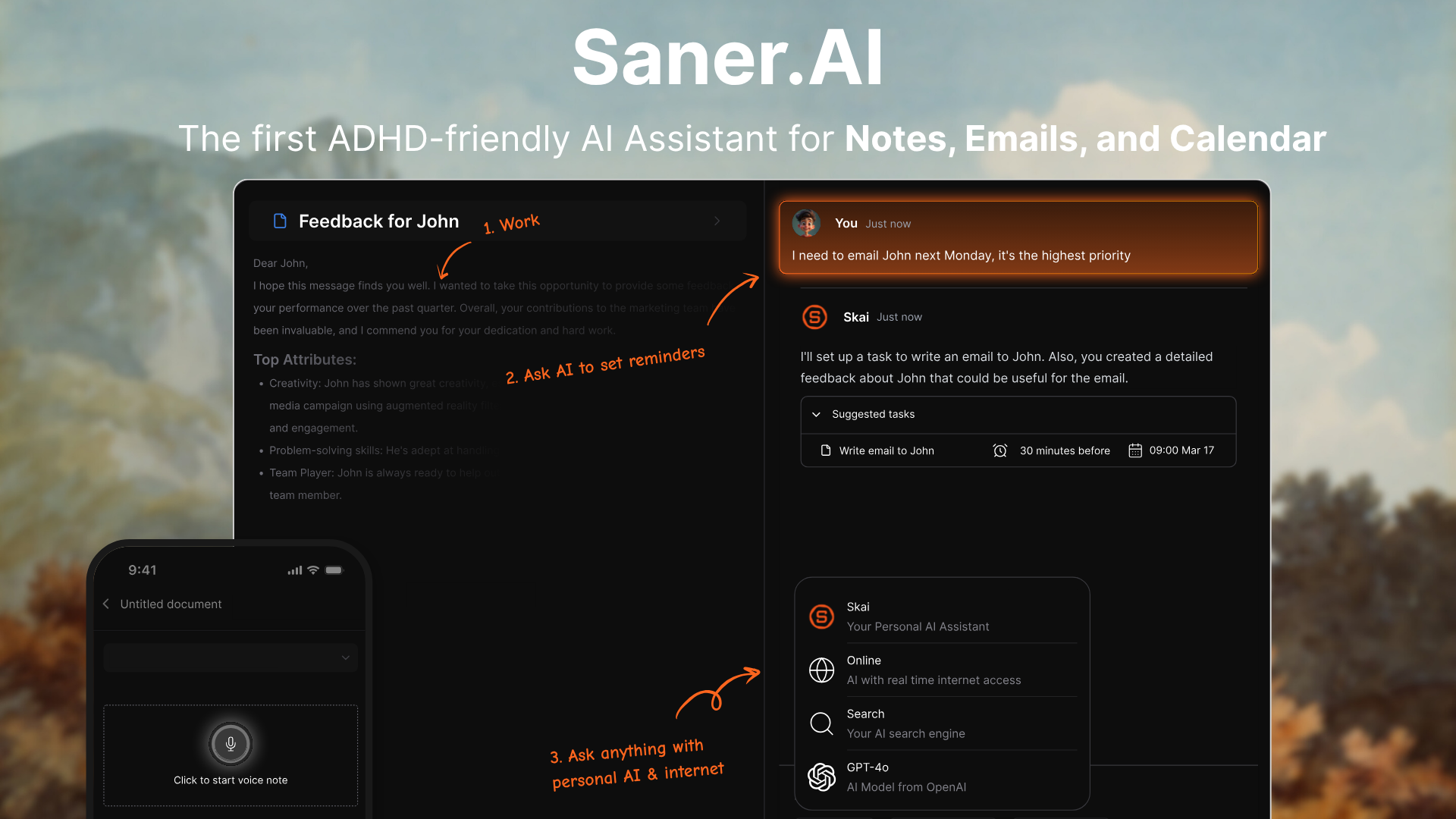
Whether you’re just getting started or want to use it more efficiently, this breakdown will help you build the habit and get the most out of Saner.AI - your AI Personal Assistant.
Full Guide to use Saner.AI [2025]
🚀 Getting Started With Saner.AI
Hi everyone, I’m Austin - cofounder of Saner.AI. In this guide, I’ll walk you through how to use this assistant step by step:
1. Start Your Day on the Home Screen
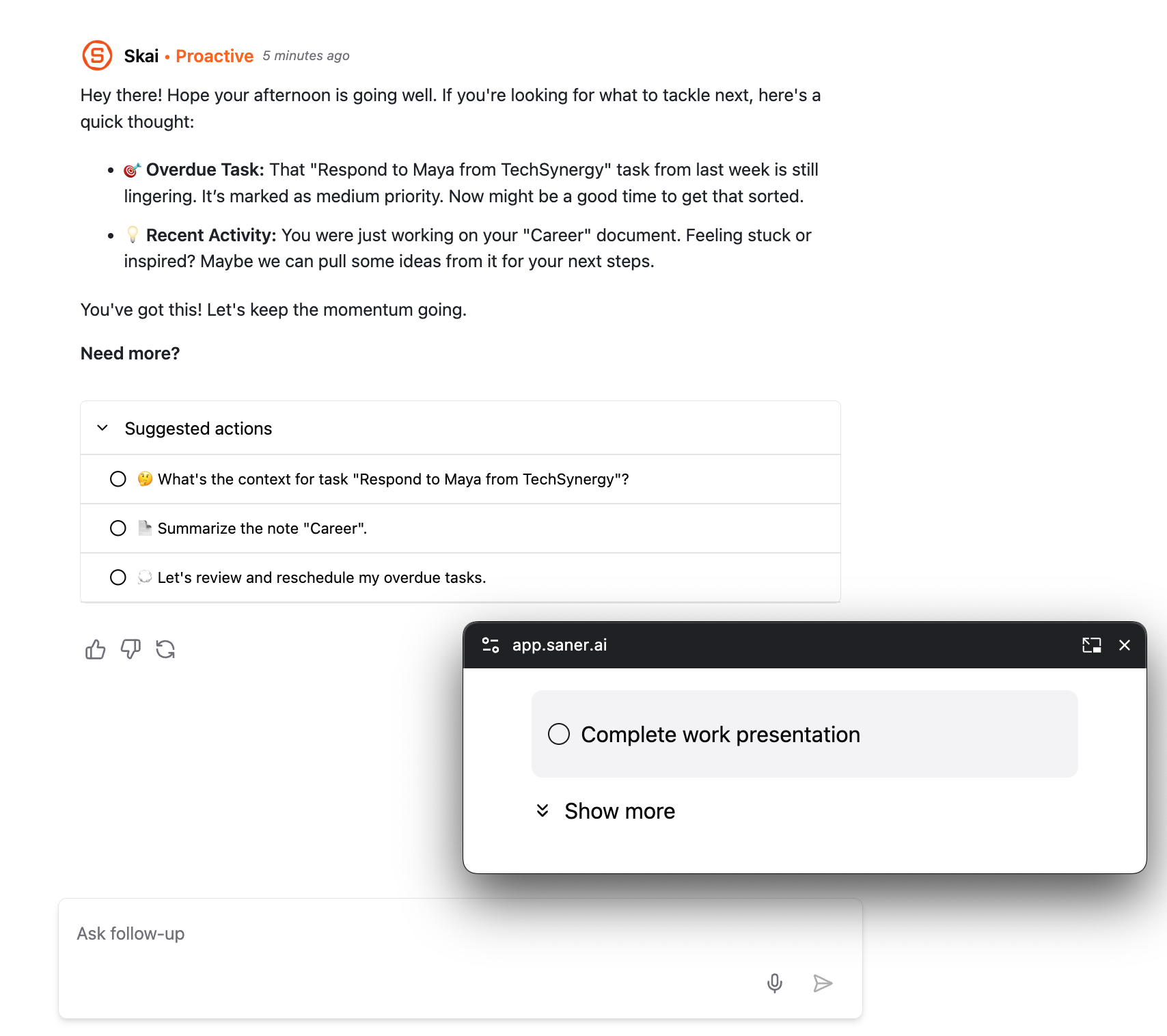
When you open Saner.AI, you’ll land on the Home screen. This is your AI-generated day plan.
- Saner automatically scans everything you've synced - emails, tasks, notes, calendar - and lays out your day.
- It highlights your urgent and high-priority tasks, and suggests a few quick wins to get momentum
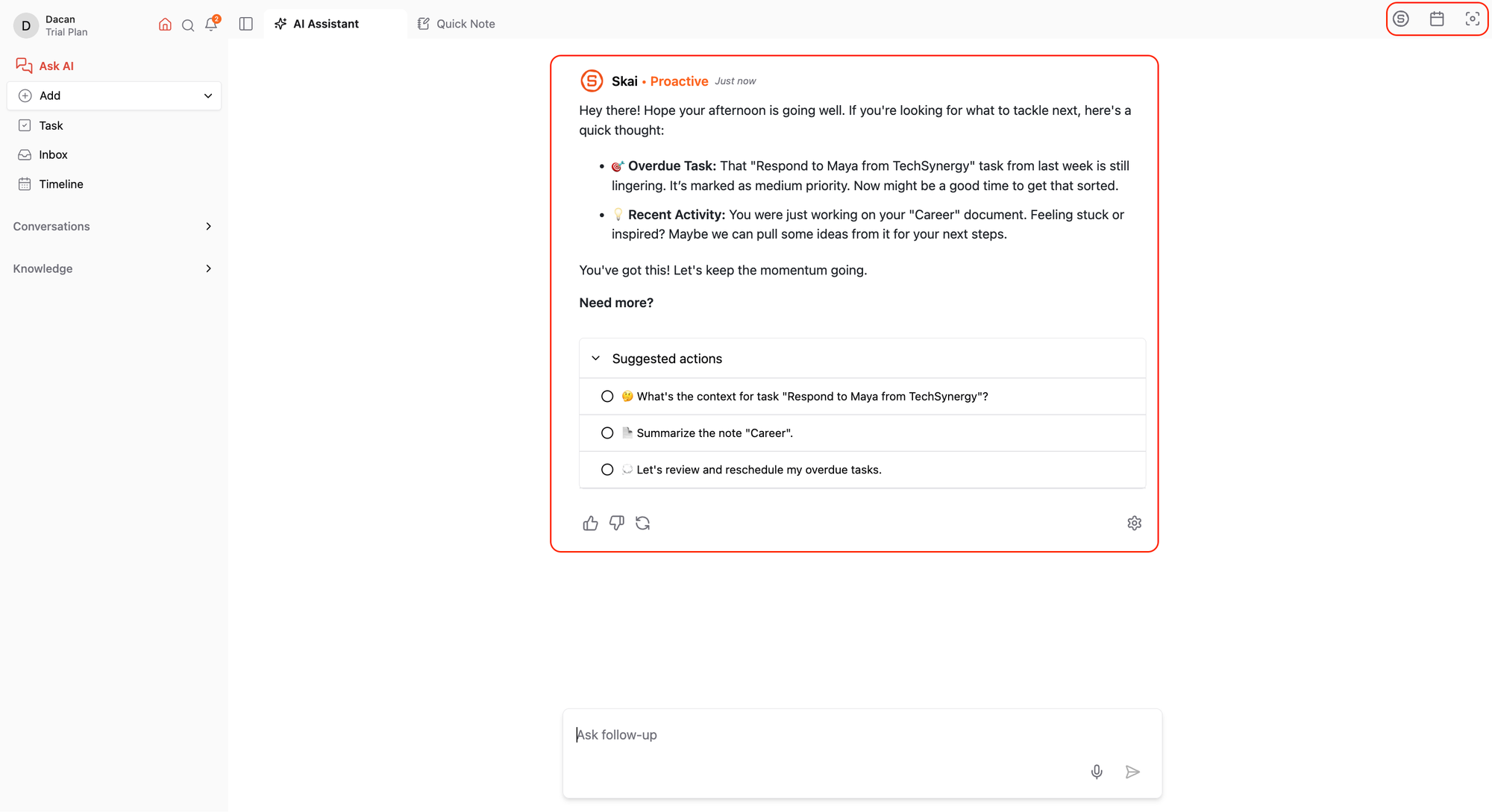
On the top right corner, you’ll see three key button:
- AI Side Panel: Open this to chat with Saner and ask for help.
- Calendar View: Shows all tasks and events scheduled with a specific time.
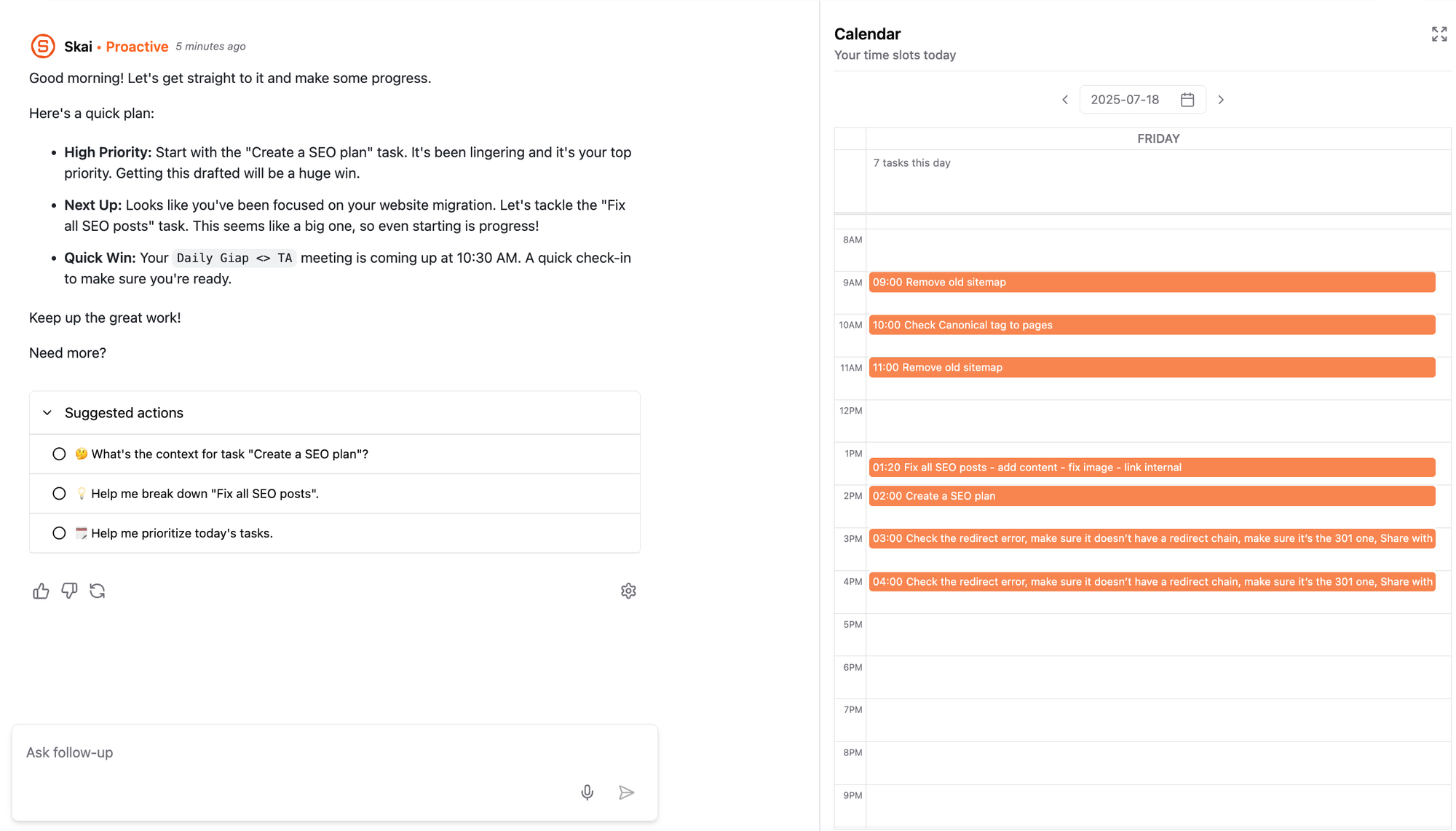
- Focus Box: Your zone for tasks you want to zero in on.
- Optional: Turn on the floating pop-up viewer to follow you across tabs, or switch to full-screen mode when you're ready for deep work.
2. Add or Connect Your Information
Add New Notes or Tasks
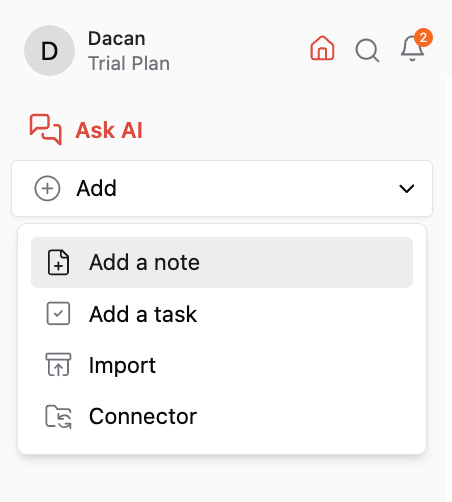
- Click the Add button
- Choose to create a note or a task
- Start typing - it’s that simple
Import Your Files
- Choose a folder to store your imports
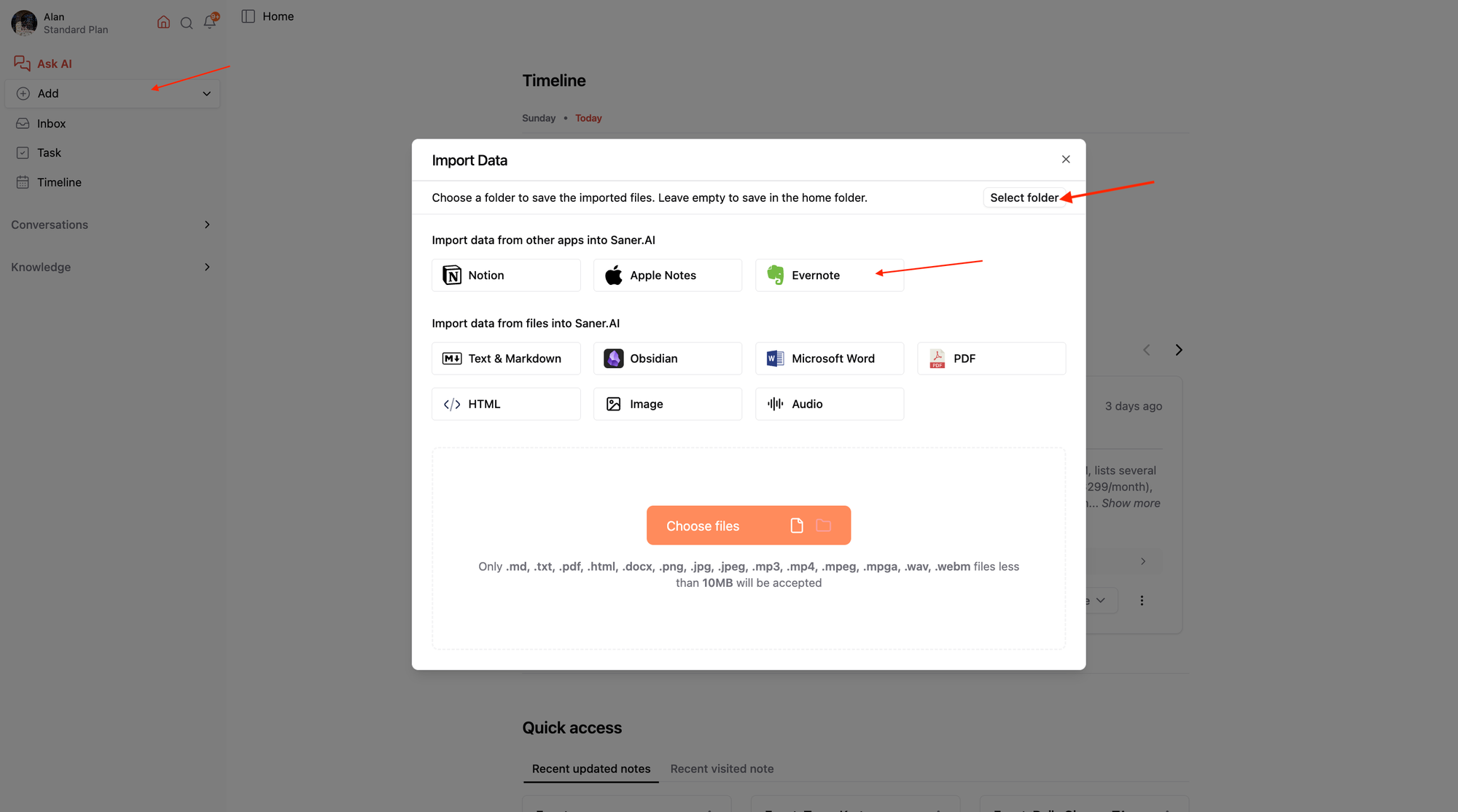
- Select the files and click Import
- Done! They’ll show up in your library and become searchable
3. Sync with Google Services (Connectors)
1️⃣ Google Drive
- Click the Add button
- Go to Connectors
- Click the Drive icon
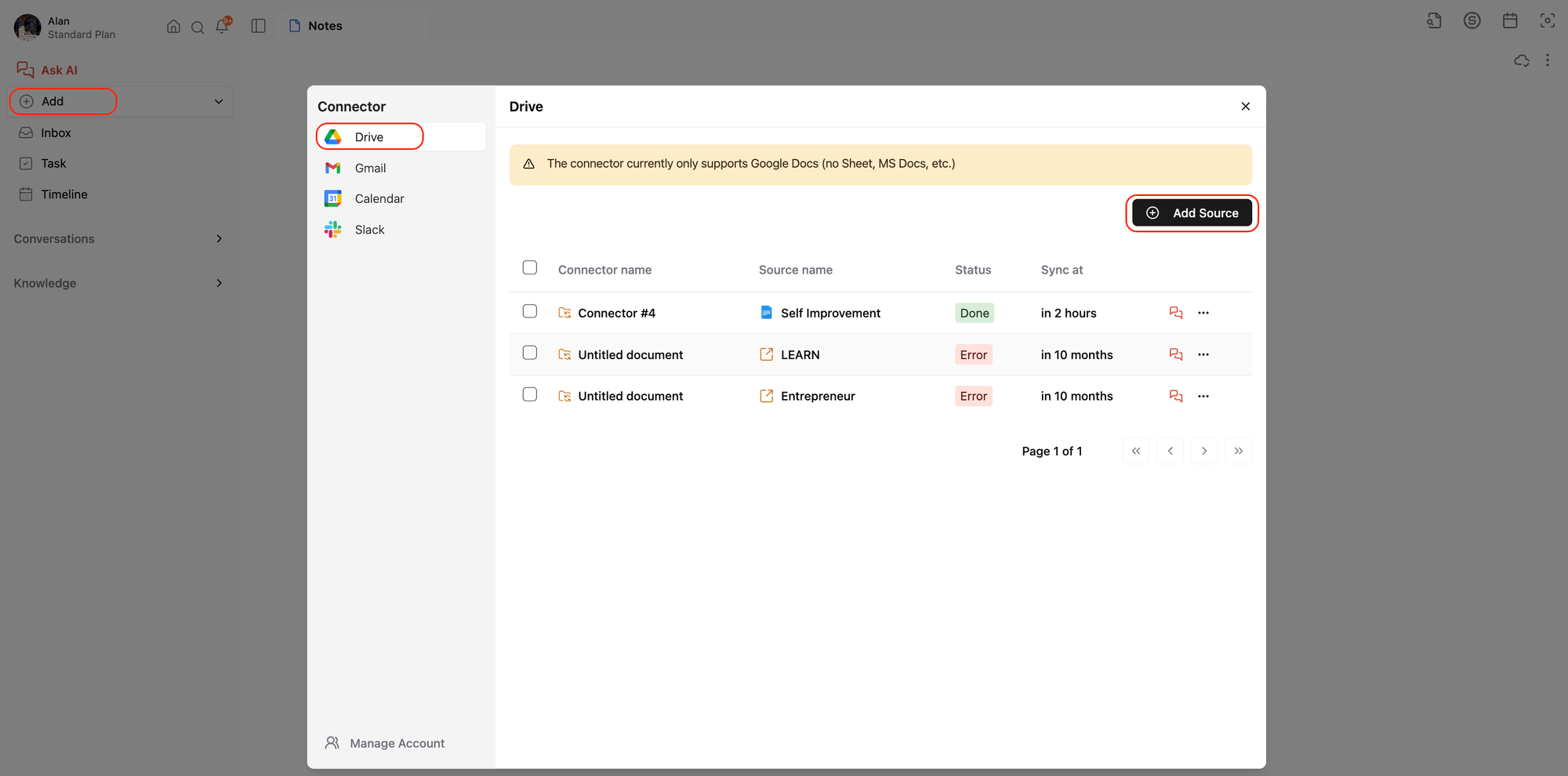
- Hit Connect Source
- Pick your Google account
- Choose which folders to sync
💡 Tip: You should connect folders you want to search or ask questions about later.
2️⃣ Connect Gmail
- Click the Gmail icon and then Add Source
- Choose the accoun
- Apply filters like:
- Label (e.g., only “Saner” emails)
- Date range
- Read status, starred, etc.
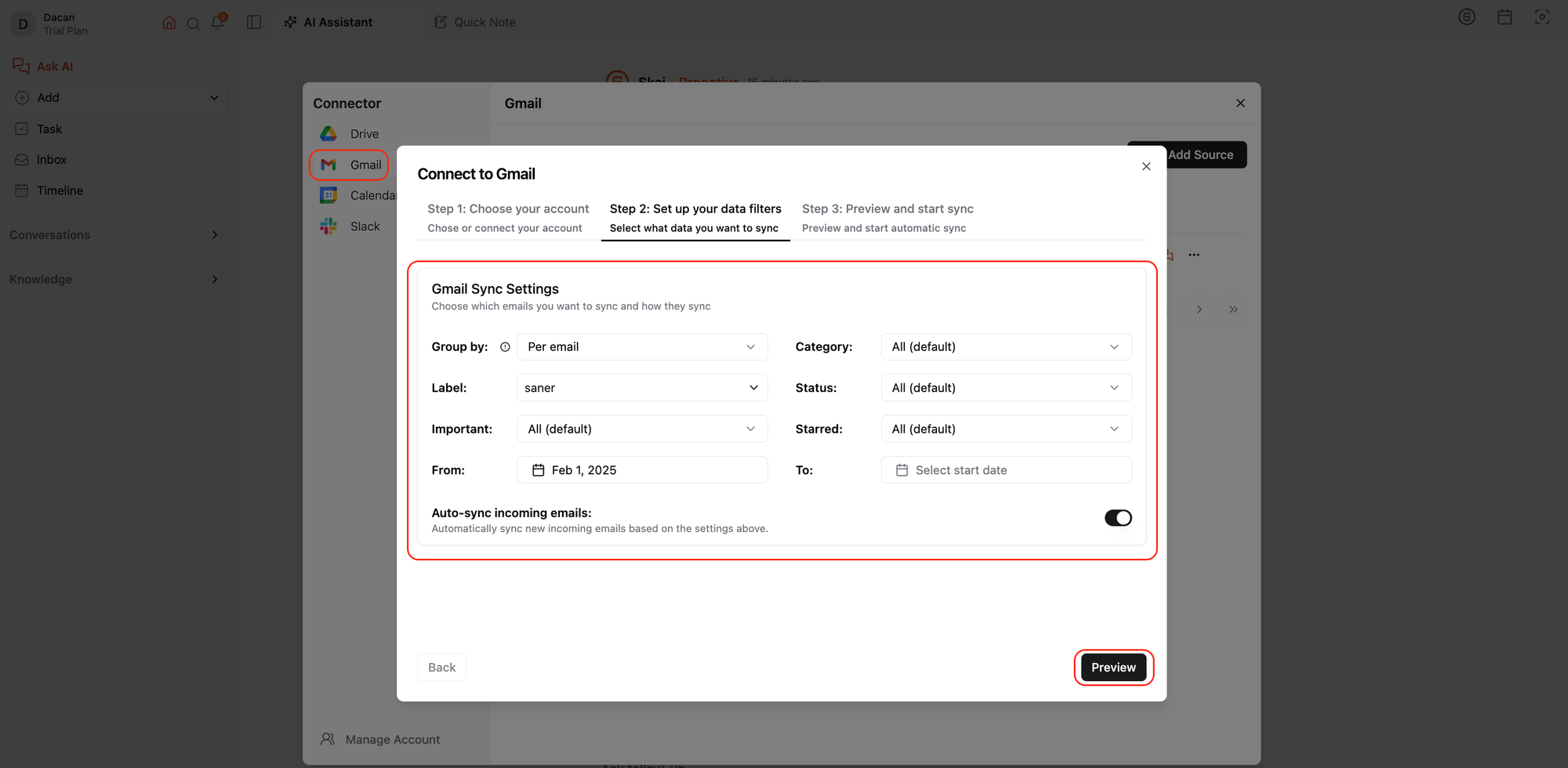
- Turn on Auto-sync
- Click Preview, then Sync Now
💡 Tip: You should sync important emails you want to process to Saner. I do that by only syncing emails with Important label to
Your synced emails will appear in the Connector folder within Saner.
3️⃣ Connect Google Calendar
To bring events into Saner:
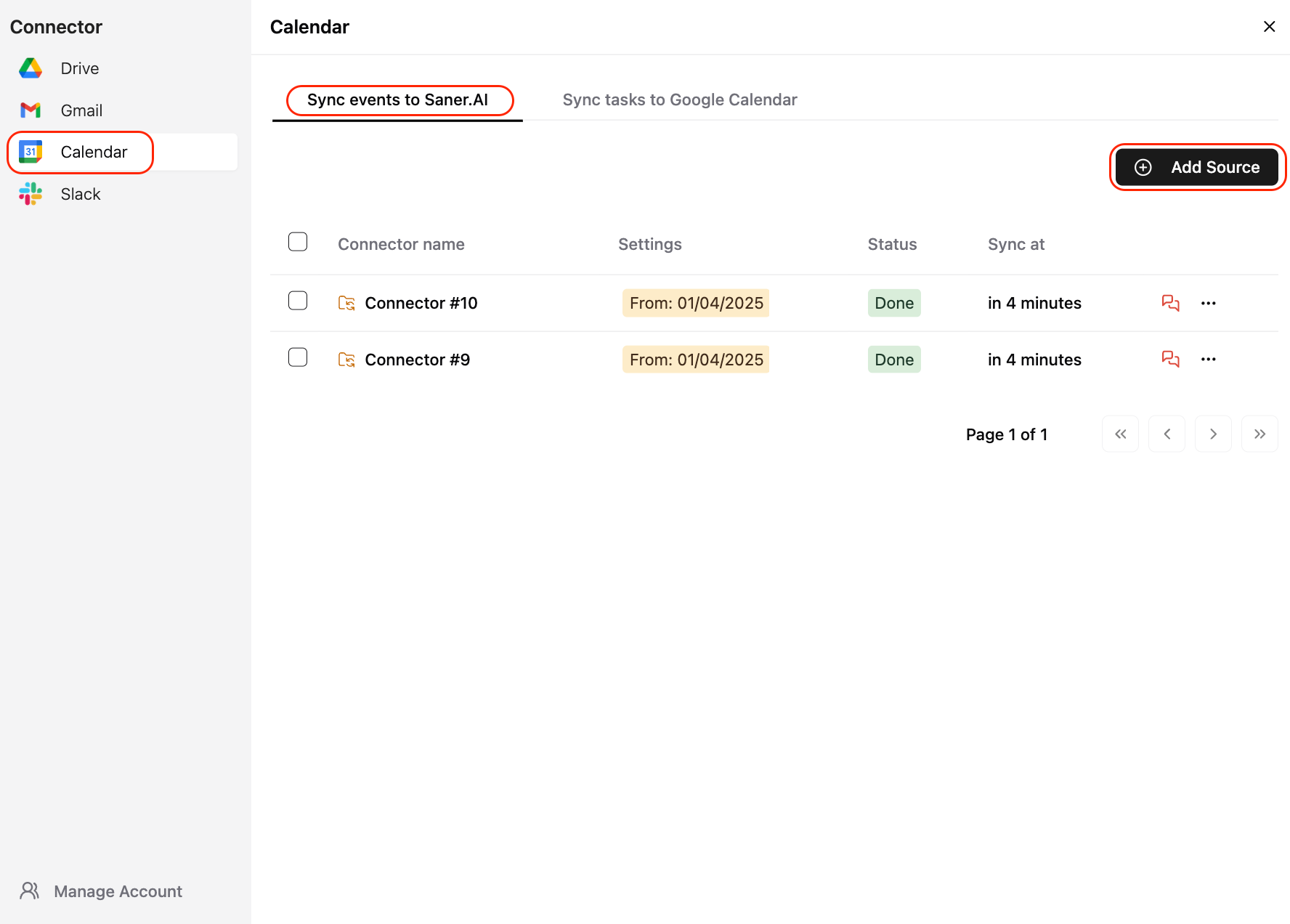
- Click Add Source under Calendar
- Select your account
- Choose calendars and date range to sync
To push Saner tasks onto Google Calendar:
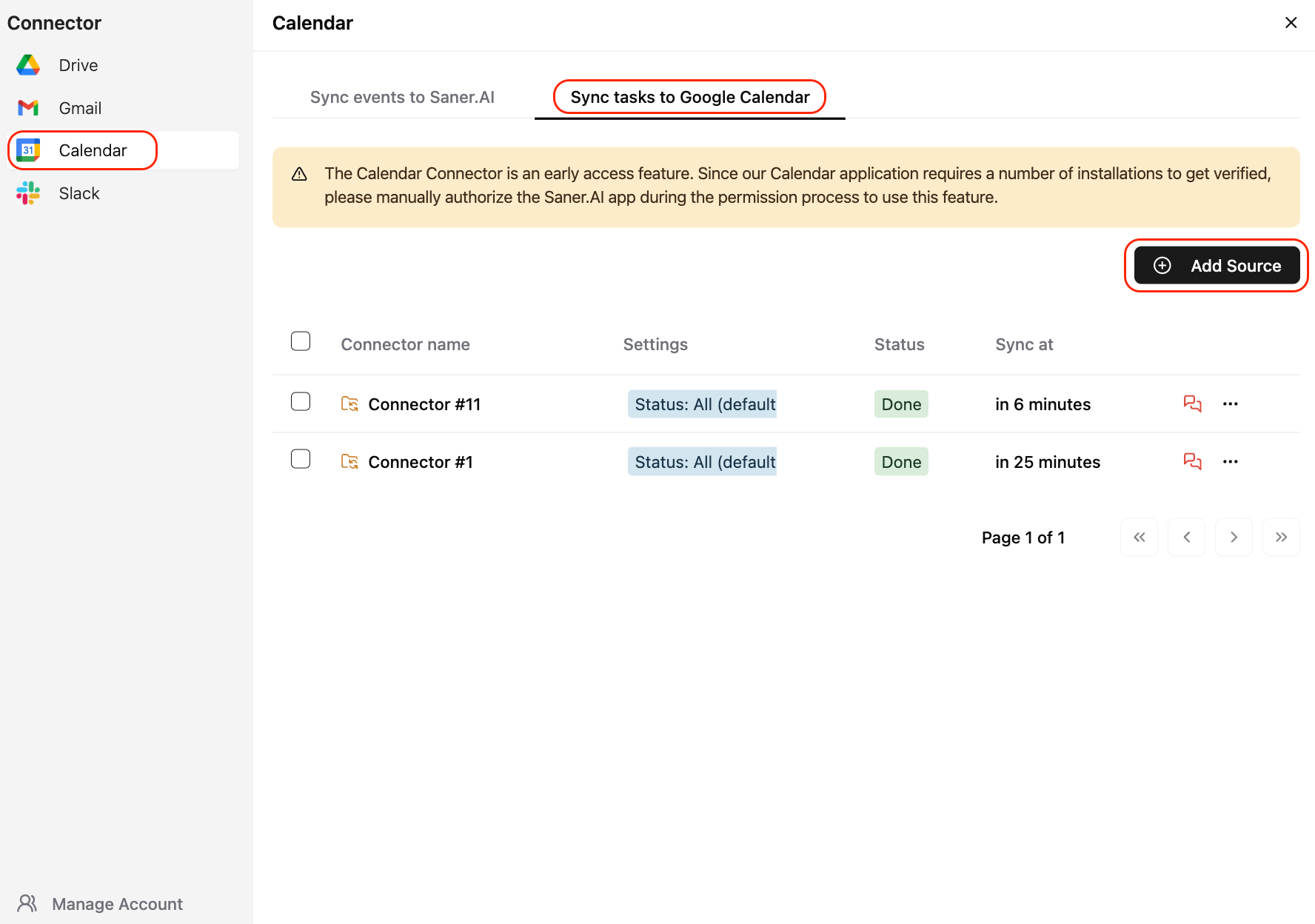
- Click Sync to Google Calendar
- Choose your account
- Filter tasks by folder, date, or completion status
- Turn on Auto-sync and optionally Delete outdated tasks
- Click Preview, then Sync Now
4. Manage Tasks Efficiently
Now that your data is in place, let’s explore some key features - starting with the Task section.
The Task section is divided into three main parts:
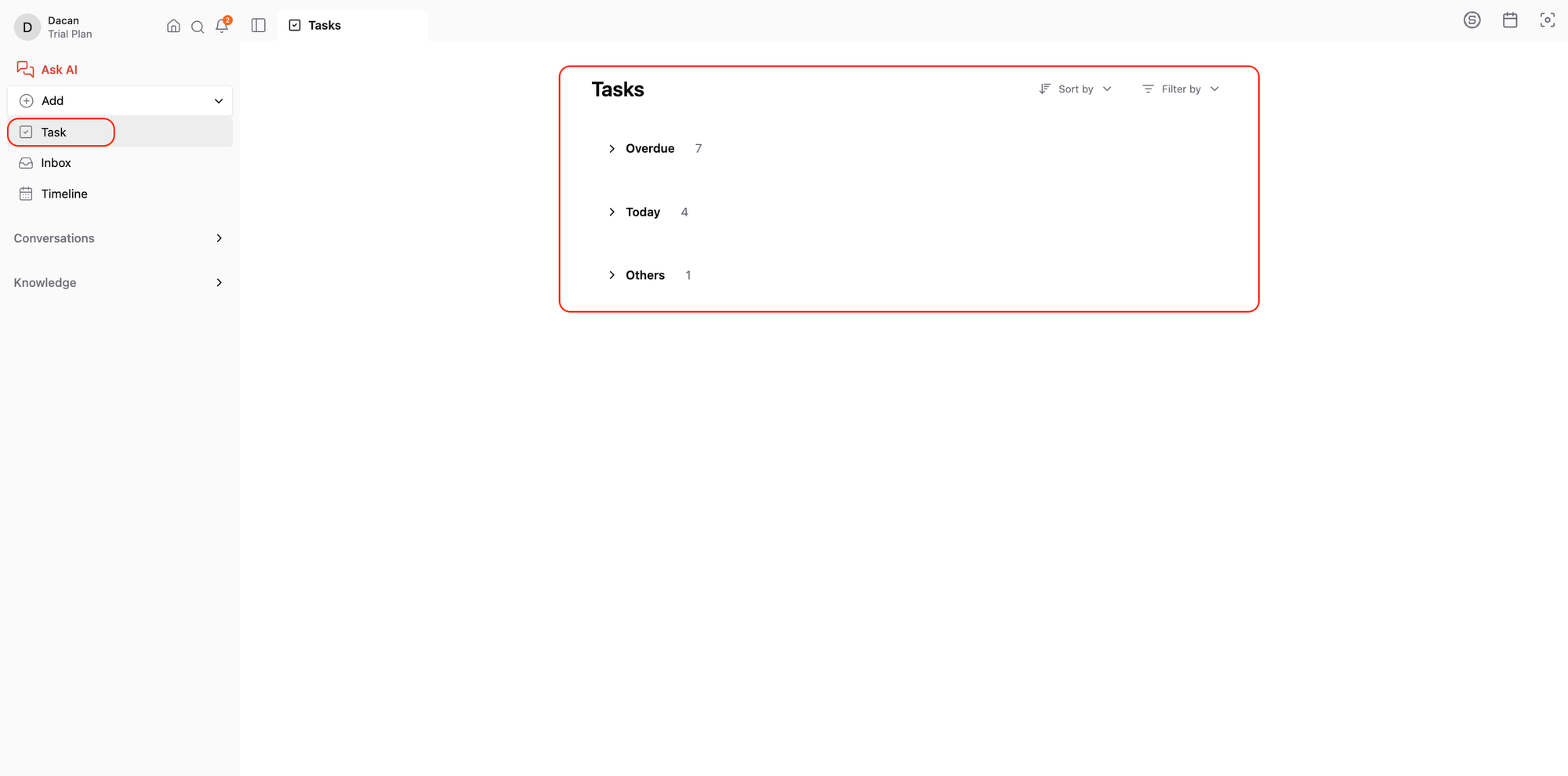
- Overdue Tasks – These are tasks that have passed their due date.
- Today’s Tasks – Tasks scheduled for today.
- All Tasks – This includes tasks without a set date or ones scheduled for the future.
You can manage these tasks with AI instead of doing everything manually.
For example, if you have a bunch of overdue tasks, just click Select, choose the ones you want, and then ask the AI to:
- Prioritize them
- Break them down
- Reschedule them
- Or even plan your day around them
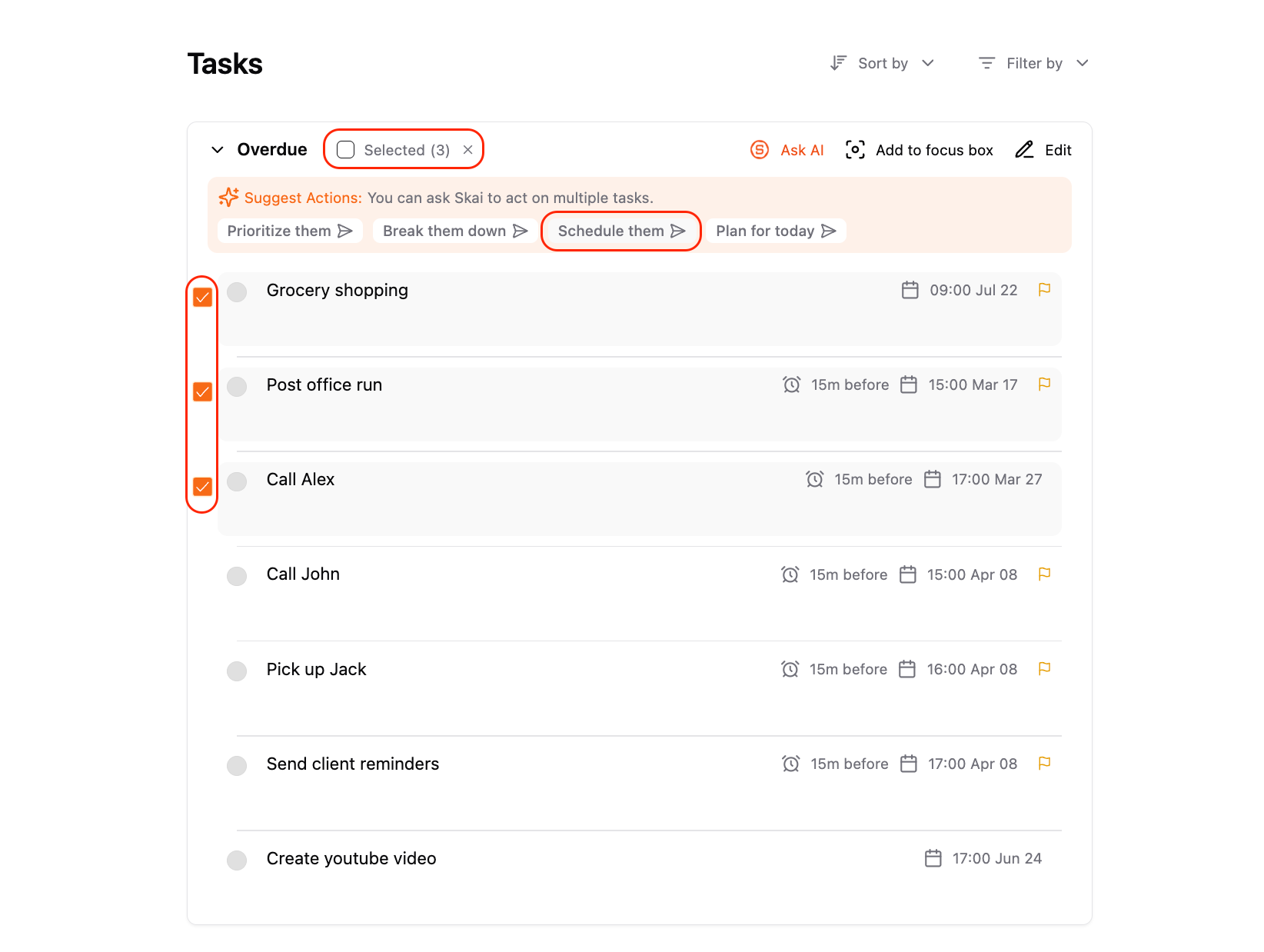
You can also chat with the AI for to adjust them further
Tips: If there are tasks you really want to focus on, you can add them to the Focus Box I mentioned earlier.
5. Organize Incoming Info in the Inbox
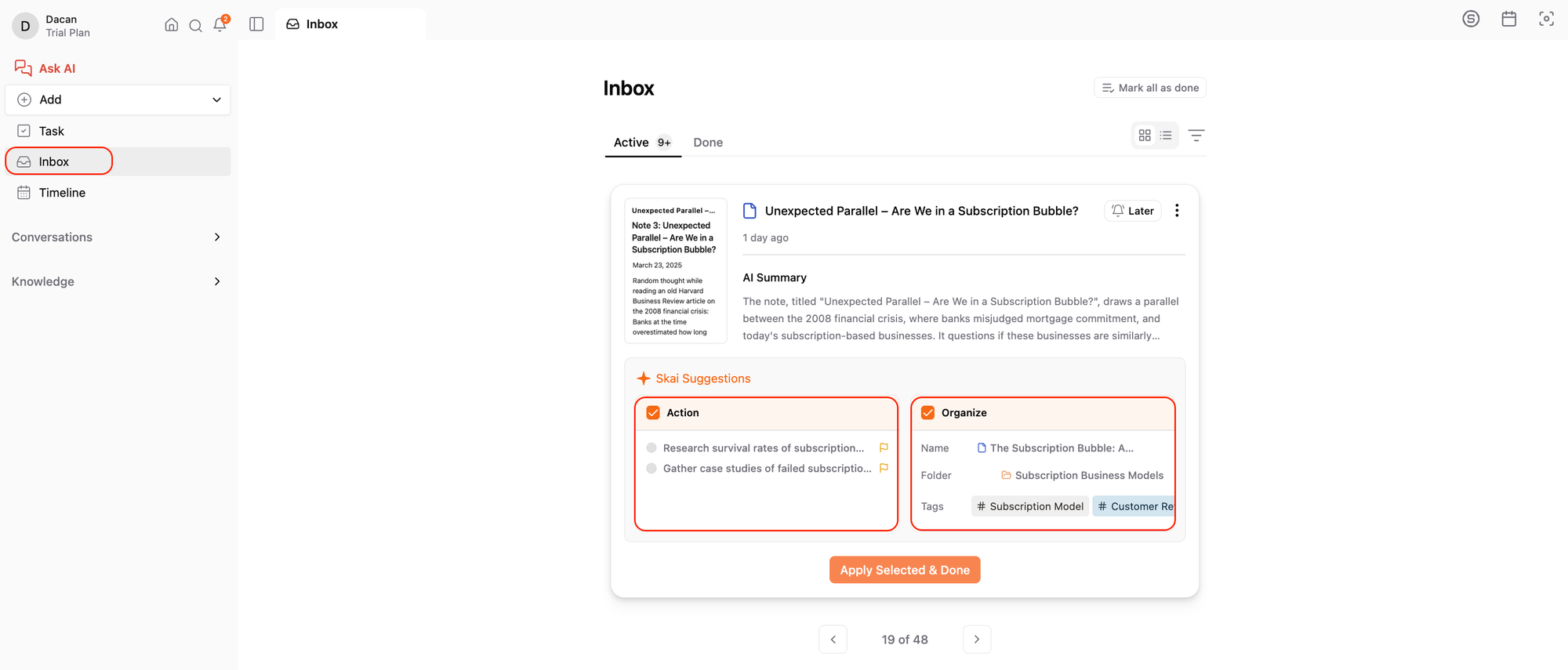
Inbox is the place where you manage your emails and notes. AI will scan your incoming information - like new notes or emails - and automatically suggests ways to organize them or take action.
For example, for this one the AI suggest: action items and organization for it like
- A folder to store it in
- A name for the note
- Relevant tags
If you like the suggestions, just click Apply Selected and you’re done.
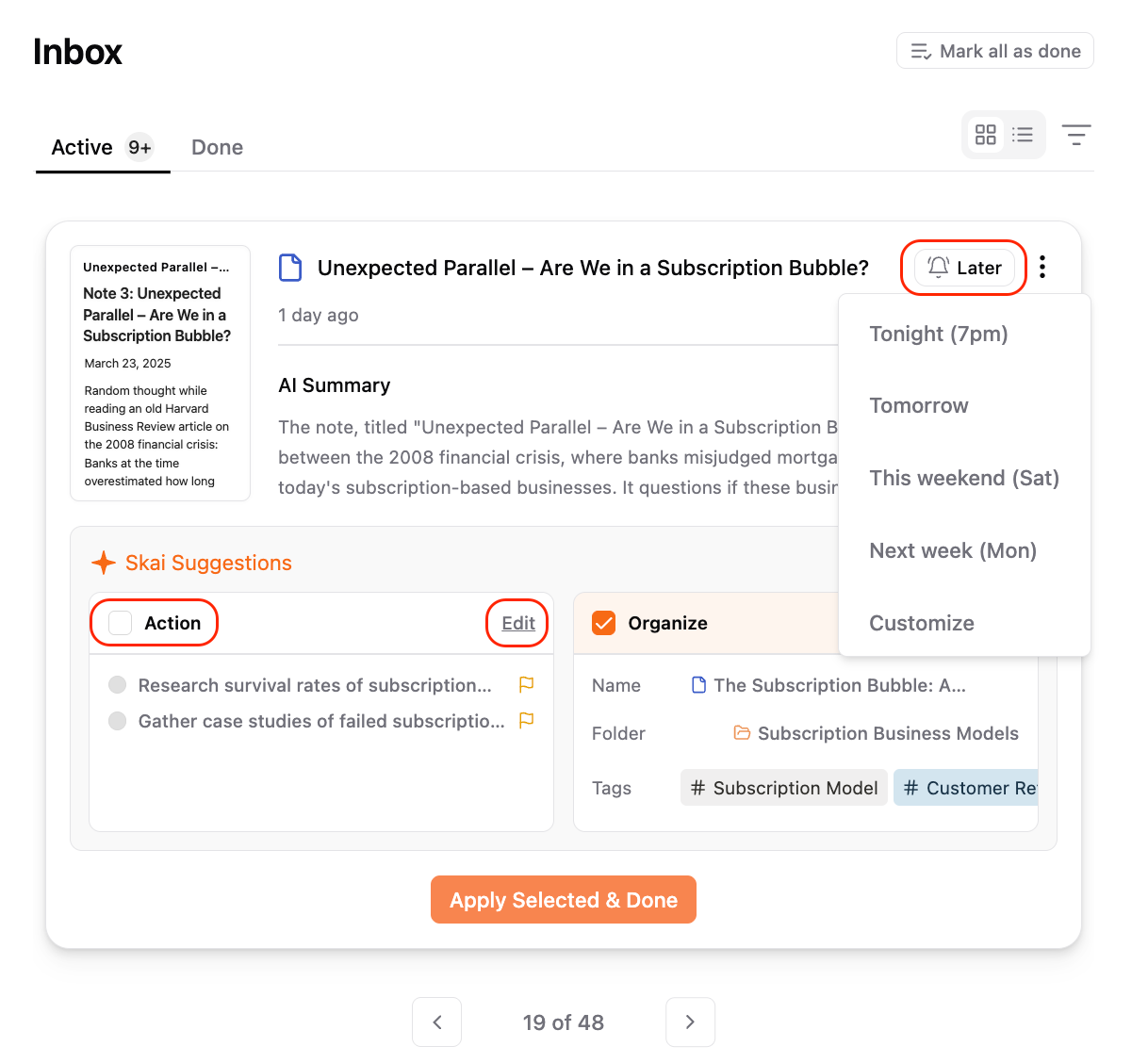
If not, you can uncheck any suggestions and hit Done to skip them.
If you are not ready to deal with it yet, Click Later, set a time, and the item will reappear in your Inbox when you're ready.
So in short: the Inbox helps you quickly turn incoming info, especially emails, into organized tasks, so nothing important slips through the cracks.
6. Capture Thoughts in the Timeline
Next, we have the Timeline section.
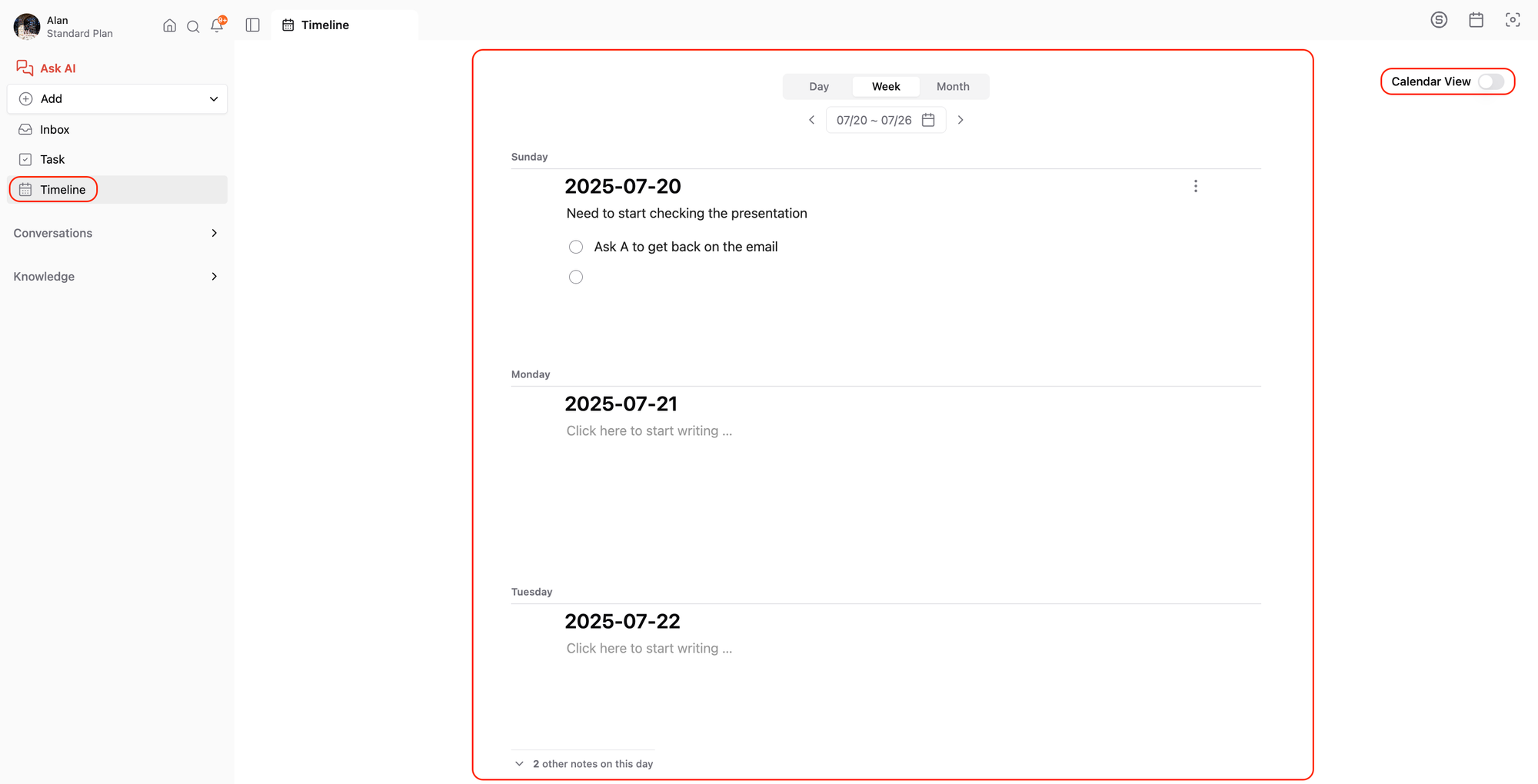
This is where you can jot down random thoughts or quick notes throughout the day. Saner automatically creates a daily note for you, so everything you write is organized by date without any extra effort.
You can view your timeline in:
- Daily View – to see what you wrote each day
- Weekly, Monthly View – for a high-level overview of your activity
We’re also working on adding a Calendar View - soon, you’ll be able to see your tasks and notes in a full calendar layout, similar to what you’re used to in Google Calendar.
7. Review Conversations and Knowledge
Now let’s talk about two important sections: Conversations and Knowledge.
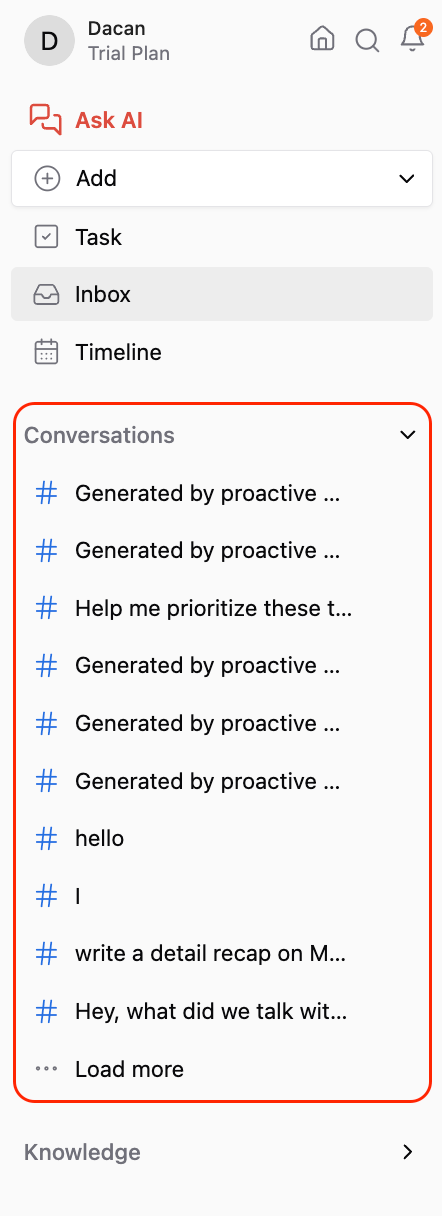
💬 Conversations
This section keeps a history of all your chats with Saner.AI.
📚 Knowledge
This is where all your synced and created information lives:
- Notes
- Google Drive files
- Gmail emails
- And anything else you’ve connected
Everything is organized into folders and notes, just like a regular file system.
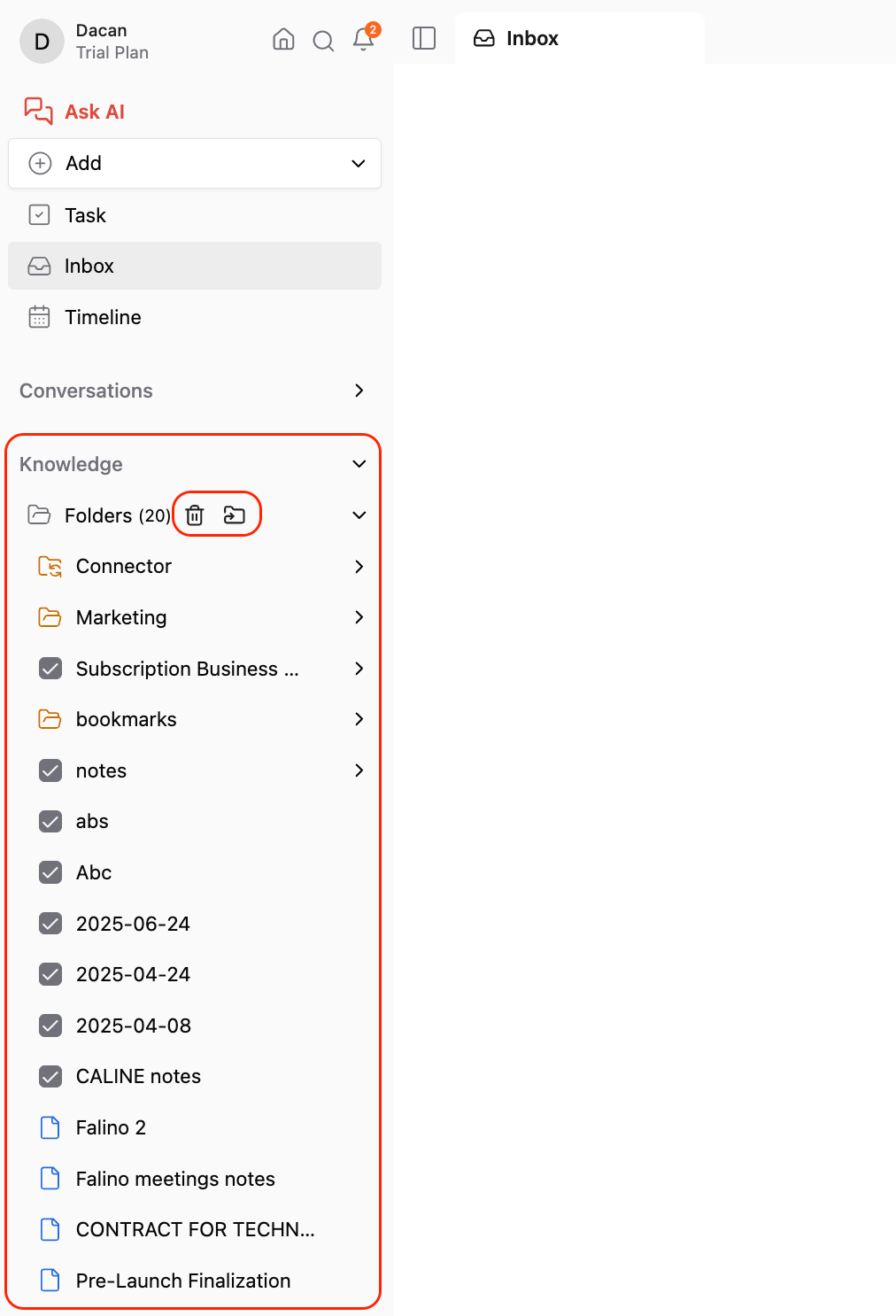
You can:
- Create new folders and notes
- Select multiple items at once
- Organize or delete them easily
Just hover over any note or folder - when the checkbox appears on the left, click it. Then use the toolbar above to:
- Move items
- Or delete them
So basically, Conversations is your chat history, and Knowledge is your full content library
8. Edit Individual Notes with AI Help
Alright, now let’s dive into the granular details with an individual note
To create a new note, just click the Add button and select Add a Note.
Next to the note name - you’ll see a small arrow button.
Clicking it opens a menu with options to:
- Add tags
- Change the folder
- Add a summary
The best part is you can ask the AI assistant to help with all of these.
Just click the AI button next to each option, and it can:
- Suggest relevant tags based on your content
- Move the note to a more appropriate folder
- Write a quick summary for you automatically
It saves time and helps you stay organized without overthinking everything
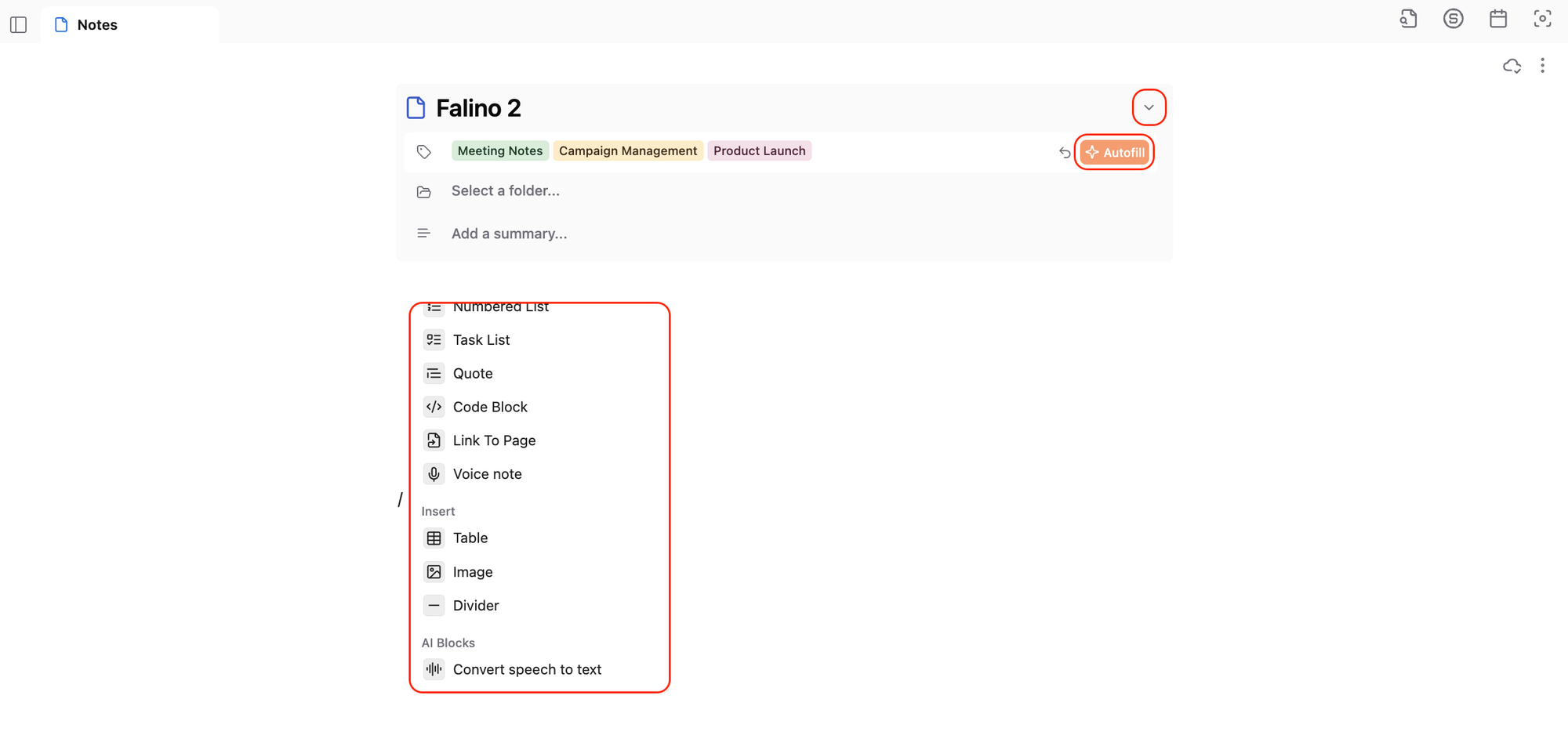
Inside the note, you have a flexible editor with many formatting options.
Just type / to open the command menu. From there, you can add:
- Headings
- Bullet lists
- Numbered lists
- Code blocks
- Tables
- Links to other pages
- Images
- Voice notes
- And even convert your speech into text directly in the note
This makes it super easy to structure your ideas, capture thoughts quickly, and mix formats however you like.
9. Adjust Your Settings
Last but not least, you can your username (top right) to access:
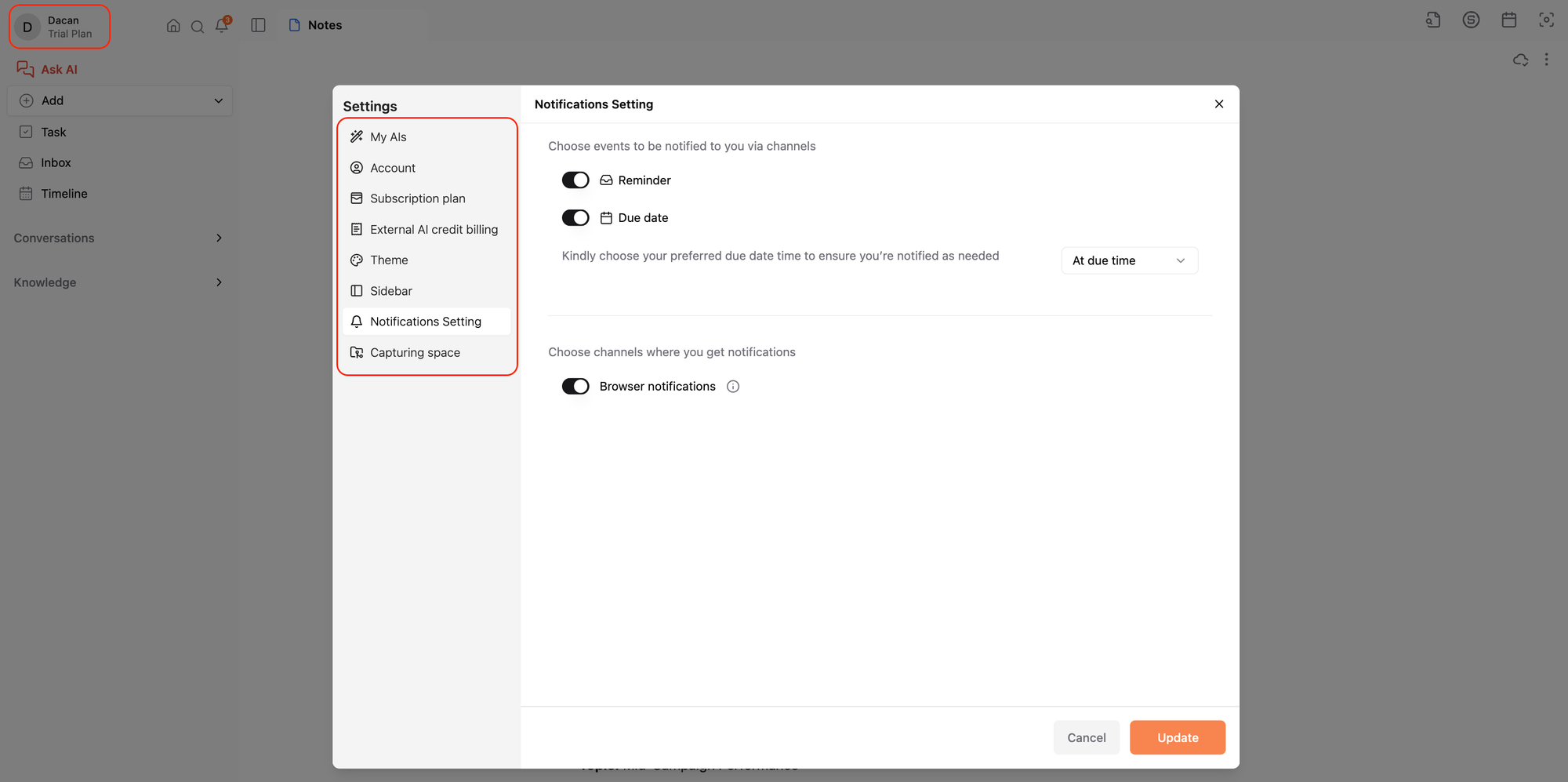
- Account Settings: Update name, timezone, or erase data
- Subscription & Credits: Manage your plan and AI model usage
- Customize Sidebar: Reorder or hide sections
- Appearance: Light or Dark Mode
- Notifications: Enable reminders and AI nudges
- Capturing Space: Set the default folder for new content
- Feedback: Share bugs, ideas, or thoughts - we read everything
🧠 Daily Workflow on Saner.AI
Using Saner.AI isn’t about constantly managing your system - it’s about letting the system guide you, while you focus on doing the actual work. Here’s what a typical day might look like:
Daily Workflow on Saner.AI
1. Start on the Home Screen
- Each morning, Saner greets you with a personalized day plan based on your tasks, calendar, notes, and recent activity.
- You can review what’s urgent, see suggested quick wins, and talk to the AI to adjust or refine your schedule.
2. Lock in Your Priorities With Calendar and Focus Box
- Next, head to the calendar view and Focus Box. Here, you’ll lock in your most important tasks for the day.
- You can drag tasks into the Focus Box manually or ask the AI to prioritize for you - it’s designed to help you stay on track, not second-guess what to do next.
3. Capture New Information Throughout the Day
- As your day unfolds, you’ll naturally come across new tasks, insights, and emails.
- Saner makes it easy to capture and organize them on the go -whether you’re adding a voice note, jotting something down in the Timeline, or receiving a new email in the Inbox.
4. Collaborate With the AI Anytime You Need
- The AI is there whenever you need support - whether it’s helping you reschedule tasks, break down large projects, organize your new notes, synthesize research across multiple files, or quickly surface information from past work.
5. End With a Nightly Review
- At the end of your day, you can log in for a quick review.
- Saner shows you what you completed, what’s still pending, and what’s coming up tomorrow - all auto-prepared by the AI so you don’t have to dig through your tools.
That’s a quick overview of the most important features on Saner.AI. I hope you will have a better sense on how to start using the app
Saner.AI is built to reduce the noise, save time, and help you act on what matters. It’s not just a workspace - it’s your working assistant.
If you have any feedback, feel free to reach out us at contact@saner.ai
More good things to come.
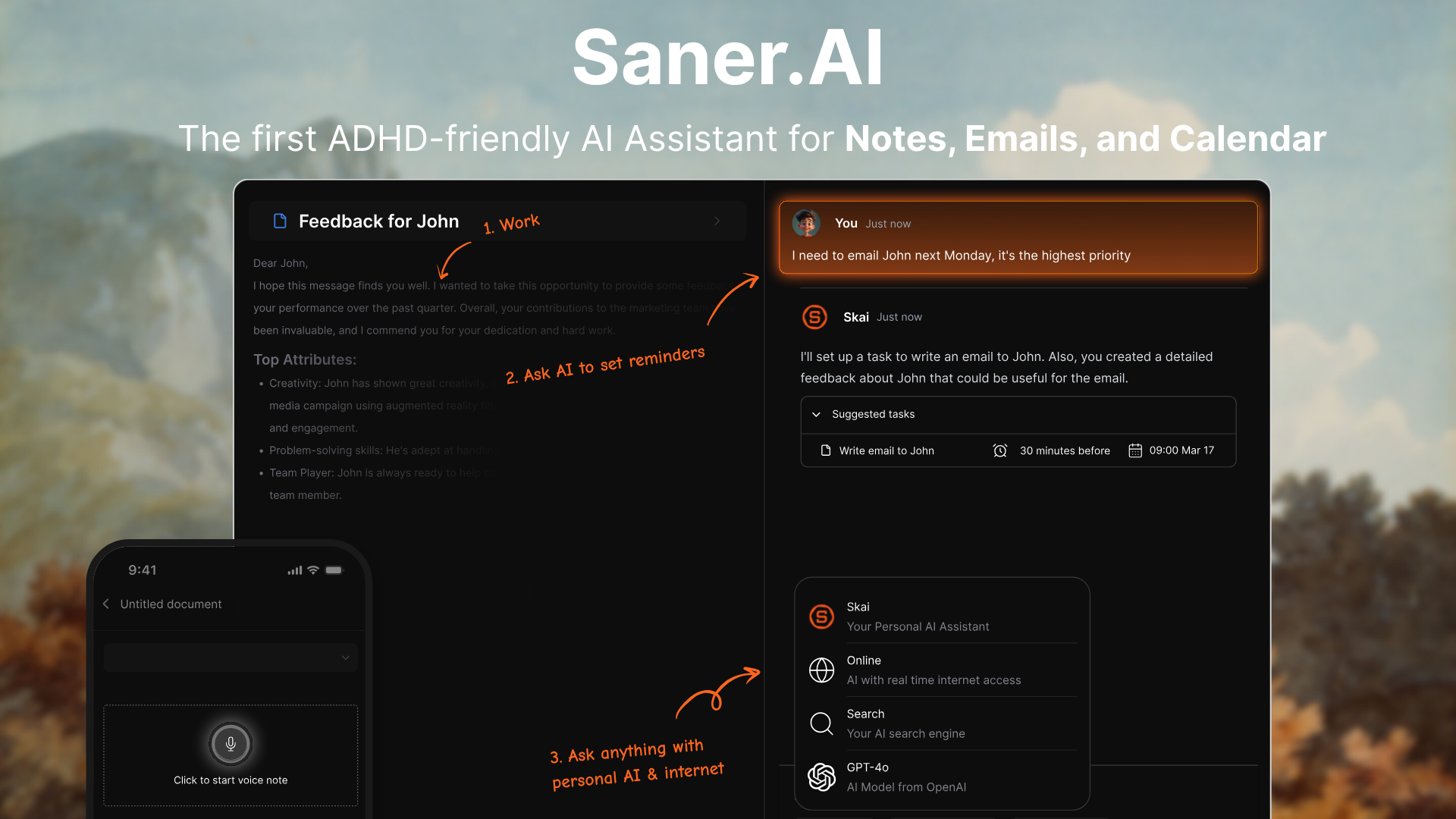
Stay on top of your work and life
P/s: You may be interested in Saner.AI's typical users and workflow