Mem.ai is shutting down: What to do next

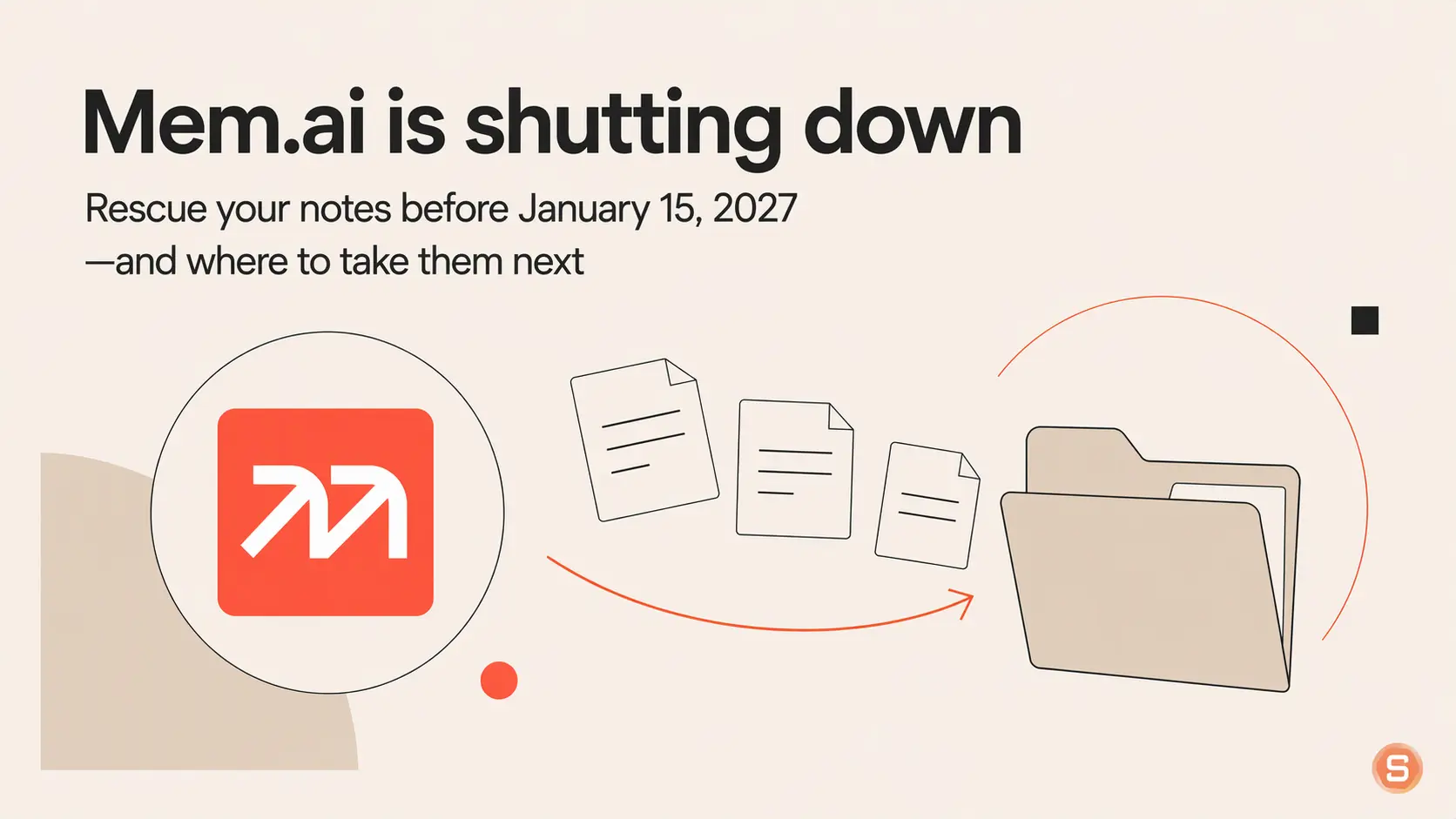
Mem is closing for good on January 15, 2027, and your notes go read-only on December 18, 2026. If Mem is where your brain lives, you have a few weeks to get everything out, and the export itself takes about five minutes to start.
On November 16, Mem's founder and CEO Kevin Moody announced the shutdown in a letter thanking users and walking through the timeline. It's a kind letter. It's also a little gut-punching if you spent years tossing meeting notes and ideas into Mem and trusting it to find them again.
We build Saner.AI, so yes, we have an obvious stake here (we've even written a Mem alternatives roundup and a Mem review before). But the first half of this post is useful no matter where you end up. Save your notes first. Pick the new app later.
Quick answer: what should Mem users do right now?
- Export your library today from Settings → Exports → Start new export → My Computer, and keep the ZIP somewhere backed up.
- If you recorded meetings, tick the audio recordings option before you start the export. Transcripts come by default; audio doesn't.
- Open the export report and spot-check a handful of notes before you trust the copy.
- Choose your next home based on how you actually used Mem: as a place to write, or as an AI assistant that remembered for you.
- Re-export once more before December 18 if you keep writing in Mem until then.
The two dates to put in your calendar
Mem has given everyone two deadlines, per the official announcement:
Date | What changes | What you can still do |
|---|---|---|
December 18, 2026 | Notes become read-only. No new notes, no edits. | Sign in, read and export |
January 15, 2027 | Mem shuts down completely | Nothing. Access is gone. |
Billing is already handled. Mem says it has paused all charges and won't bill you again, and anything you paid for (features, limits) stays available until the end, with the read-only switch on December 18.
One thing the announcement doesn't mention is when stored data gets deleted. I'd treat January 15 as the hard line and assume anything not exported by then is gone.
Step 1: export your Mem notes (do this today)
Mem's step-by-step export guide is short and clear:
- On a computer, sign in to the Mem account you want to keep and open Settings → Exports.
- Click Start new export, choose My Computer, then Next.
- Look at the options before you hit Start export. If you recorded meetings and want the actual sound, select audio recordings here. Transcripts are included by default, but audio isn't, and it can make the download a lot bigger.
- Go back to Exports and wait for the download to be ready. Big libraries take a while, and Mem asks you not to start a second export while one is still preparing.
- Download the ZIP. On a Mac, double-click to unpack it. On Windows, right-click and choose Extract All.
- Keep the original ZIP untouched and work from a copy of the folder. Put the ZIP in a cloud drive, not your Downloads folder, where it will quietly disappear under 400 other files.
What you get inside the folder:
Folder or file | What's in it |
|---|---|
notes/ | One Markdown (.md) file per note |
collections/ | An index file for each collection, linking to its notes |
attachments/ | Images, PDFs and other files your notes reference |
export-report.md | A list of anything Mem couldn't include (only there if something was skipped) |
The export is a snapshot of that moment. If you keep adding notes in Mem over the next few weeks, run another export before December 18 so the new stuff comes with you.
Step 2: check the export before you trust it
A ZIP that downloaded is not the same as a ZIP that has everything. Spend ten minutes on this while Mem is still around to compare against.
- Open export-report.md first, if it exists. Anything listed there needs saving by hand (copy-paste, screenshot, re-download the attachment)
- Pick four or five notes you know well and open them: one with an image or PDF, one that links to other notes, one inside a collection, and one meeting note with a transcript.
- Make sure attachments actually open and the text reads normally, without weird formatting or missing chunks.
- If meetings matter to you, play one of the recordings. A written meeting note, a transcript, and a recording are three separate things, so having one doesn't mean you have the others.
The move isn't finished until you've opened a familiar note in the new app, followed a link and opened an image or PDF. That's a good bar to hold yourself to.
What the ZIP in Mem can't carry
Your notes come out of Mem fine. The part that made Mem feel like Mem doesn't. Mem's own farewell post traces it: search that understood what you meant, "Similar Mems" that resurfaced forgotten thoughts, auto-suggested collections, Mem Chat answering questions from your notes. All of that ran on indexes and models inside Mem, and none of it fits in a folder of Markdown files.
So the real question isn't "which app can open .md files?" Almost all of them can. It's "which app will do the remembering for me again?"
That's the lens I'd use for choosing what's next. If you used Mem as a plain notebook, pick whatever feels nice. If you used it as an outside memory, pick something that rebuilds the memory part.
Step 3: pick a new home based on how you actually used Mem
Mem's migration guide has instructions for Apple Notes, Obsidian, Notion, Google Docs or Drive, OneNote, Bear and Evernote.
If you used Mem mostly to... | Good fit | The trade-off |
|---|---|---|
Write and keep plain files you own | Obsidian | Opens your export folder directly as a vault. AI search and chat need plugins and some setup. |
Build structured docs, wikis and databases | Notion | Lots of structure, but you do the organizing, which is the opposite of the Mem deal. |
Jot quick things on Apple devices | Apple Notes | Simple and free. No AI memory across your notes. |
Stay inside Google or Microsoft | Google Docs, OneNote | Familiar, but notes become documents in folders you have to manage. |
Dump things in and have AI find, connect and act on them | Saner.AI | Closest to how Mem felt, plus tasks and calendar. Large libraries need a paid plan. |
You can also use two. Mem's guide suggests keeping a complete copy in Drive and bringing only your active notes into a notes app, which is a nice low-pressure way to move.
Moving your Mem notes into Saner.AI
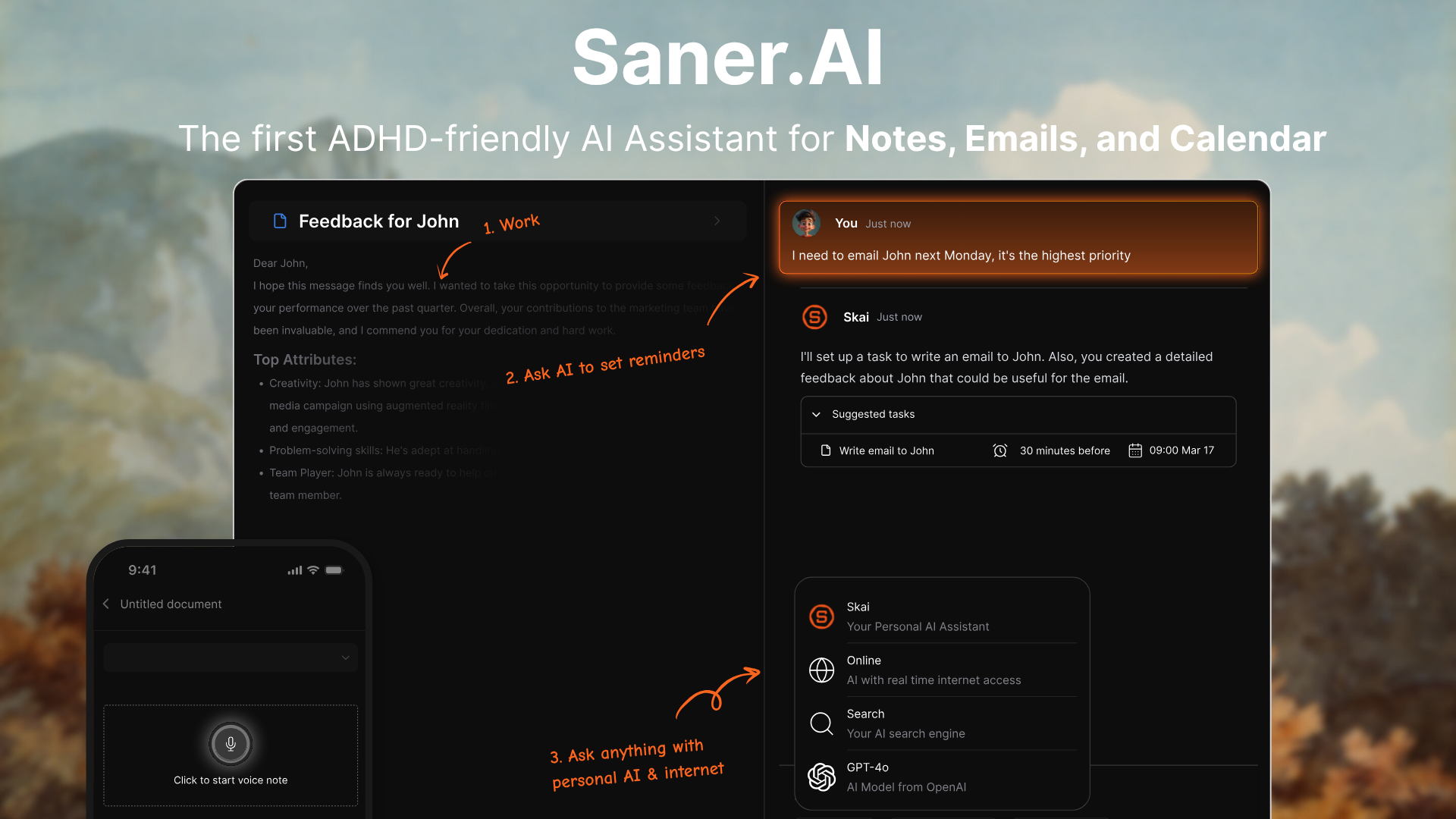
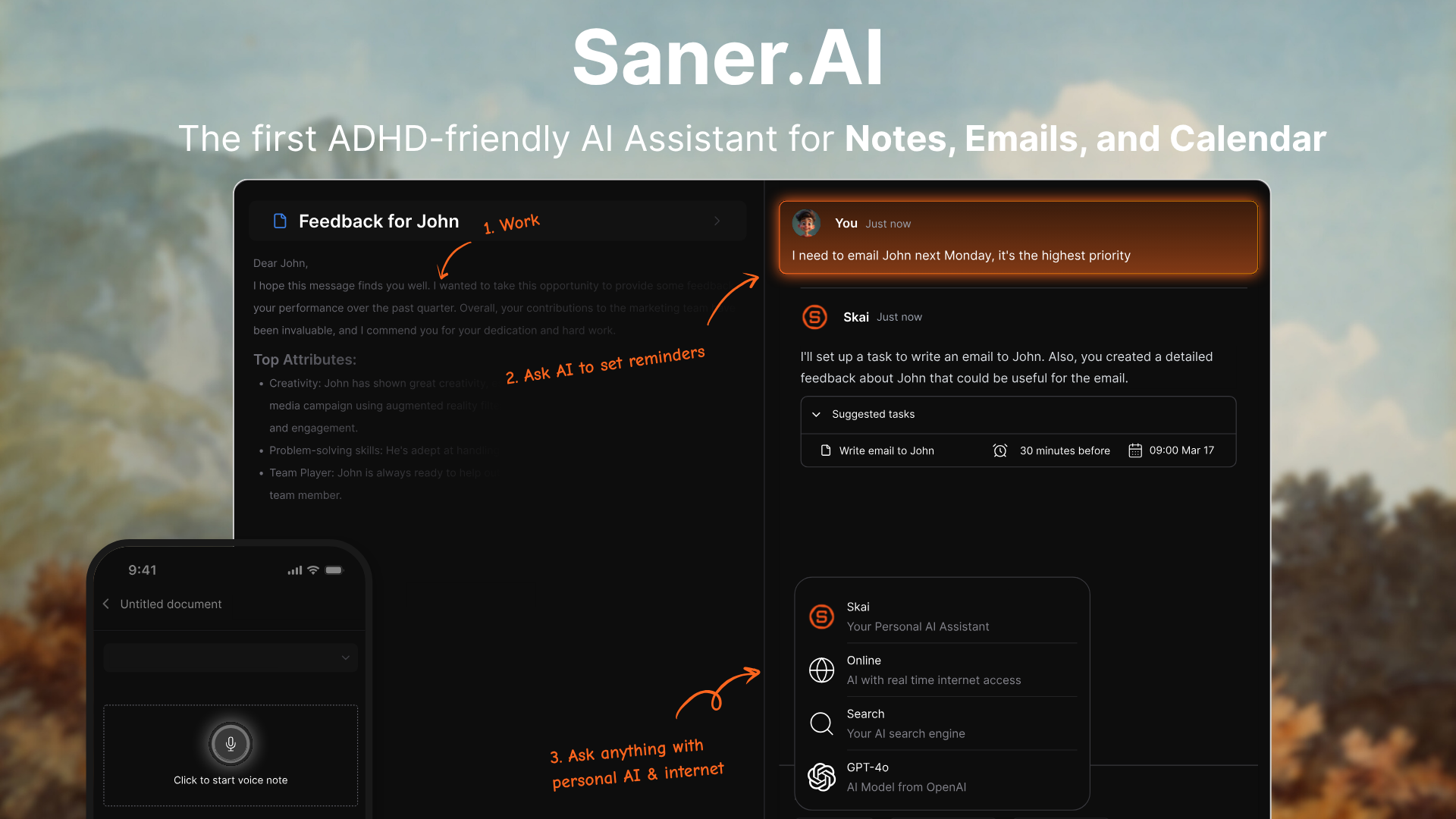
Saner.AI is an AI personal assistant for notes, email, and calendar, built by a team where one co-founder has ADHD. If Mem was your "throw it in, find it later" brain, Saner works on the same idea and adds the step Mem users often asked for next: turning what you saved into a plan for the day.
How to import your Mem export
Your Mem export is a folder of Markdown files, and Markdown is one of the formats Saner's import feature handles (along with PDF, Word, HTML, images, and audio).
- Unzip your Mem export and make a copy of the folder.
- In Saner.AI, click Add in the left sidebar, then Import.
- Drag in the files from notes/ (and attachments/ if you want your PDFs searchable too). Saner detects the file type automatically.
- Pick a destination folder, for example "From Mem", so everything lands in one place.
- Watch the progress bar, then read the final summary, which shows which files imported and which failed.
- Open three or four notes you know well and compare them with the originals.
Saner also suggests tags and folders from each note's content, so you don't have to recreate every old collection by hand.
What you used in Mem, and where it lives in Saner
In Mem you... | In Saner.AI you... |
|---|---|
Captured a thought with a shortcut | Jot in the app, the Chrome extension, or by voice on mobile |
Asked Mem Chat about your notes | Chat with Skai, which answers from your notes, files, email and calendar |
Got Similar Mems resurfacing old ideas | See Relevant Notes next to whatever you're reading |
Relied on auto-collections | Get AI tag and folder suggestions, plus a Smart Inbox for new notes |
Used Heads Up and Agent for follow-ups | Get a proactive daily plan, with tasks pulled from notes and emails |
Kept meeting notes | Keep transcripts and recaps as notes, and turn action items into tasks |
What it costs
Saner's pricing page lists a free plan. That's enough to test-drive a slice of your Mem library. Starter is $8/month, and Standard is $16/month. Yearly billing takes 20% off, and there's a student program.
A 20-minute migration plan you can do today
Here's the plan. Tick these off as you go:
- Start the Mem export (Settings → Exports → My Computer), with audio if you need it. 5 minutes.
- While it prepares, block 30 minutes on your calendar this week for checking and importing. 2 minutes.
- Download the ZIP, move it to a cloud drive, and unzip a copy. 5 minutes.
- Open export-report.md and three familiar notes. 5 minutes.
- Set a reminder for December 15 to run one final export if you're still writing in Mem. 1 minute.
That's it for today. Choosing the new app can wait until the copy is safe.
FAQ
When exactly is Mem shutting down?
January 15, 2027. From December 18, 2026, your notes are read-only: you can sign in, read, and export, but not create or edit.
Can I still export after December 18?
Yes, until January 15, 2027. After that, you lose access entirely.
Will Mem charge me again?
No. Mem says all charges are paused, and the paid features you already have stay on until the shutdown.
What format is the Mem export?
A ZIP with one Markdown file per note, an index per collection, an attachments folder, and an export report if anything was left out.
Are meeting transcripts and recordings included?
Transcripts are included by default. Audio recordings are a separate option you have to select before starting the export.
Will my Mem Chat history and AI connections come with me?
No. Those ran inside Mem. Your next app has to rebuild search and Q&A from the notes themselves, which is why it's worth choosing one with AI recall built in.
Can I import my Mem notes into Saner.AI?
Yes. Unzip the export, then use Add → Import in Saner and drag in the Markdown files and attachments.
Is there a completely free way to keep my Mem notes?
Yes. The export is free, and the Markdown files open in free apps like Obsidian or in any text editor.
Stay on top of your work and life effortlessly